

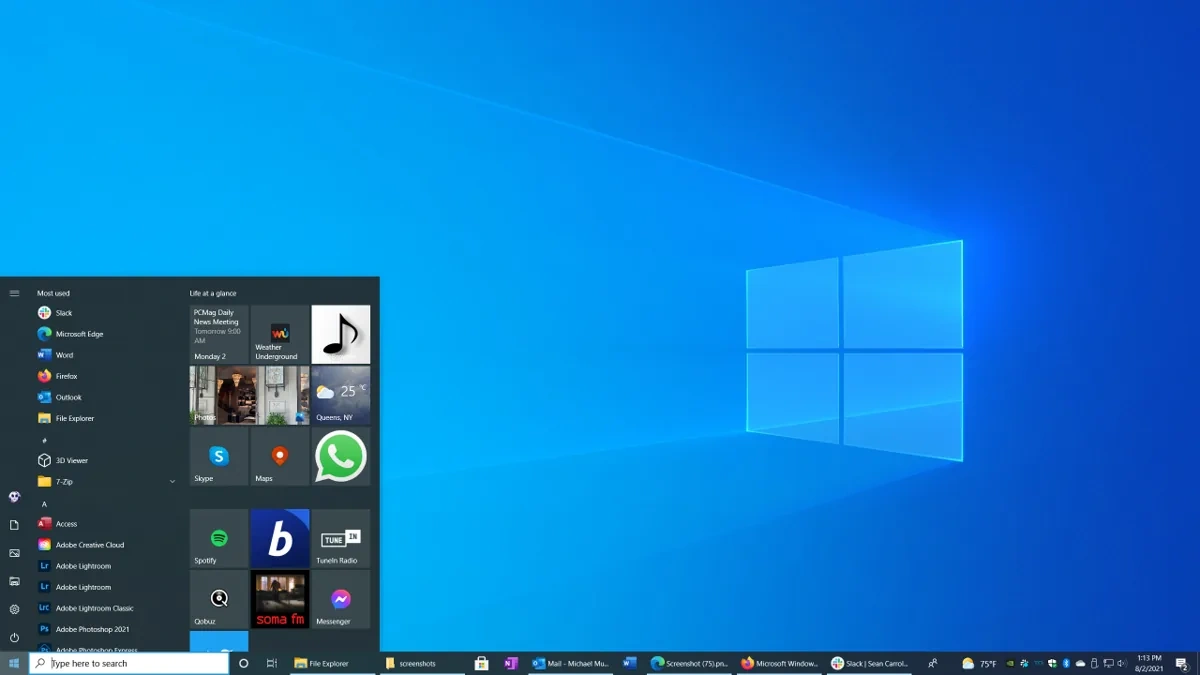
Okay, so Windows 10 is getting older – like that perfectly worn-in pair of jeans. But unlike your favorite denim, its time in the spotlight is coming to an end. We’re talking about the “end of life,” or EOL, date. It’s a phrase that sounds a bit dramatic, doesn’t it? Like something out of a sci-fi movie. But in the tech world, it simply means Microsoft will no longer provide security updates, non-security updates, or any assisted support for a particular version of its operating system. The million-dollar question is: Why is this a big deal, and what should you do about it? This article dives deep, giving you insights from industry pros and actionable steps to prepare. The end of support is closing in, but don’t panic; we got you.
Why the Windows 10 End of Life Matters – A Deep Dive
Here’s the thing: the end of life isn’t just about Microsoft wanting you to buy new software (though, let’s be honest, that’s part of it). It’s primarily about security. Think of it like this: hackers are constantly finding new ways to exploit vulnerabilities in operating systems. Microsoft releases updates to patch these holes. Once Windows 10 reaches its EOL, those patches stop coming. So, your computer becomes increasingly vulnerable to malware, viruses, and all sorts of nasty cyber threats. And let’s be real, nobody wants to be the person whose bank account gets drained because they were running outdated software. According to the official Microsoft page , the end of support date is October 14, 2025. Post that date, using Windows 10 is like driving a car without insurance – risky! This also impacts businesses heavily which use Windows 10 and need to plan a full migration or upgrade options for all their devices.
Industry Experts Weigh In | The Implications for You
I spoke with a few IT professionals – folks who live and breathe this stuff – and their consensus was clear: ignoring the EOL is a bad idea. One expert, Sarah Patel, a cybersecurity consultant, put it bluntly: “Running an unsupported OS is like leaving your front door unlocked. It’s just a matter of time before someone walks in.” Patel also highlighted the compliance issues for businesses, especially those dealing with sensitive data. Regulations like GDPR and HIPAA require companies to maintain a secure IT environment. Continuing to use Windows 10 after its EOL could lead to hefty fines and legal trouble. Plus, newer hardware will eventually stop being fully compatible with the older operating system. Newer printers, cameras or other hardware compatibility will be affected.
But – and this is a big but – upgrading can be a pain. It takes time, and sometimes things break. That’s why planning is crucial. Don’t wait until October 13, 2025, to start thinking about this. Begin now.
Your Action Plan: Preparing for the Windows 10 End of Life
So, what should you do? Here’s a step-by-step guide that breaks it down:
- Assess Your Situation: First, figure out what versions of Windows 10 you’re running. Not all versions reach EOL at the same time. Check your system information to see which version you have. Understand what systems need upgrading .
- Explore Upgrade Options: The most obvious choice is to upgrade to Windows 11 . But make sure your hardware meets the minimum system requirements. If your computer is too old, it might be time for a new one. There are also enterprise plans which give extended security updates, or ESU licenses , to extend the security updates for a fee.
- Backup Your Data: Before making any major changes, back up everything! Use an external hard drive or a cloud-based backup service. Trust me, you don’t want to lose your precious photos and documents.
- Plan the Upgrade: Don’t just jump in without a plan. Schedule a time when you won’t be interrupted. Read the instructions carefully, and be prepared for potential hiccups. The upgrade process can take several hours.
- Test and Verify: After the upgrade, test everything to make sure it’s working correctly. Check your applications, printers, and other peripherals.
The Cost Factor | Budgeting for the Change
Let’s be honest – upgrading or replacing your computer costs money. And for small businesses, that cost can be significant. Factor in the price of new software licenses, hardware upgrades, and potentially IT support. But consider this: the cost of not upgrading could be even higher. A single cyberattack could cost you thousands of rupees, not to mention the damage to your reputation. Think of the investment as a preventative measure, like getting regular health checkups.
Some businesses might also consider virtualization options to reduce costs.
Beyond Windows 11: Exploring Alternatives
Okay, so maybe you’re not thrilled about Windows 11 . Or maybe your hardware simply can’t handle it. What other options do you have? Linux is a free, open-source operating system that’s become increasingly user-friendly. Ubuntu is a popular distribution that’s easy to install and use. Chrome OS is another option, especially if you primarily use web-based applications. But be aware that switching to a different OS requires learning a new system and ensuring your applications are compatible.
FAQ: Addressing Your Windows 10 EOL Questions
Frequently Asked Questions
What happens if I keep using Windows 10 after the end of life?
Your computer will still work, but it will be more vulnerable to security threats. You won’t receive any more security updates from Microsoft.
Can I pay to extend support for Windows 10?
Yes, Microsoft offers Extended Security Updates (ESU) for businesses, but this is a paid option.
Is Windows 11 a free upgrade?
Yes, if your system meets the minimum requirements, the upgrade from Windows 10 to Windows 11 is free.
What are the minimum system requirements for Windows 11?
You’ll need a 1 GHz or faster processor, 4 GB of RAM, 64 GB of storage, and a compatible graphics card.
How do I check my Windows 10 version?
Type “winver” in the search bar and press Enter. This will show you the version and build number.
Will my applications still work after upgrading to Windows 11?
Most applications should work, but it’s always a good idea to check compatibility beforehand.
The Windows 10 end of life is a significant event, and while it might seem daunting, it’s also an opportunity to upgrade to a more secure and efficient operating system. Don’t see it as an ending, but as a new beginning for your digital life. And remember, planning is key. Start today, and you’ll be well-prepared for the transition. The migration strategy is key to a painless transition and planning for any application compatibility issues will give you the peace of mind of a smooth roll out. Consider software compatibility before you make any changes to your systems. Industry experts know that ignoring the end of life date is a recipe for disaster. So, don’t ignore it!